
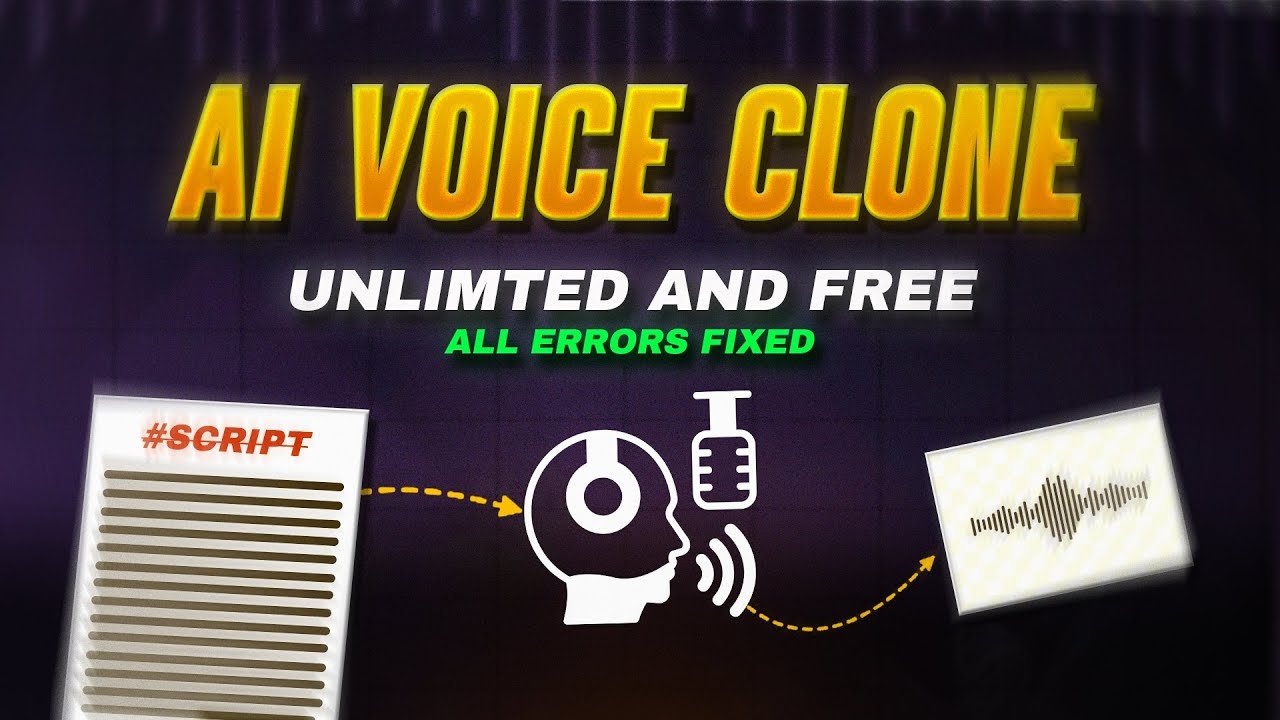
In this video, the creator explains how they fulfilled their promise by sharing a more powerful tool compared to the one shown earlier. While the previous tool had a character limit, this new solution allows users to generate long text-to-speech audio along with voice cloning for free. The video walks through the complete process of accessing, running, and using this tool through Google Colab on both mobile and desktop devices.
Difference Between the Old Tool and the New Tool
The creator mentions that the earlier tool had a limitation of around 300 characters. In contrast, the newly shared tool offers:
- Unlimited text input
- Free text-to-speech generation
- Voice cloning functionality
- Ability to generate 5 to 10 minutes of audio easily
This makes it more suitable for long scripts and automation-based content.
How to Access the Tool Using Google Colab
To use the tool, users need to click on the provided link, which opens a Google Colab interface. Once there:
- No settings need to be changed
- Simply click on the Run All button
- Select Run Anyway when prompted
The system will then start downloading the required files automatically.
Handling Restart Session or Crash Errors
During the process, users may encounter messages such as “Restart Session” or see warnings about session crashes. The video clearly advises:
- Do not restart the session
- Click Cancel instead
- After canceling, the remaining files will continue downloading
Even if a message like “Your session crashed for unknown reason” appears, there is no need to panic. According to the explanation, the installation is already completed at that stage.
Running the Correct Cell to Get the Tool Link
After the installation process:
- Do not run the entire notebook again
- Only run the second cell
- This will generate access links for the tool
Users should click on the lower URL provided. The method is the same for both mobile phones and PCs.
Using Voice Cloning and Language Selection
Once the tool interface opens:
- A default text and sample voice are already present
- These default options are not required for automation use
- Users can upload their own voice sample for cloning
The creator demonstrates generating audio in multiple languages by:
- Pasting text in the desired language
- Selecting the same language from the language dropdown
- Clicking the Generate button
The voice is generated quickly and can be previewed before downloading.
Testing Multiple Languages
The video shows successful voice generation in:
- Spanish
- Italian
- Chinese
- Japanese
This confirms that the tool supports multilingual text-to-speech generation while keeping the cloned voice consistent.
Audio Download and Long Script Usage
After generation:
- Audio files can be downloaded using the download button
- Long scripts of 5 to 10 minutes work smoothly
However, the creator honestly mentions that extremely long scripts may sometimes cause errors, as this is a free tool and minor bugs can occur.
Key Takeaways / Summary
- The tool offers unlimited text-to-speech and voice cloning for free
- It works through Google Colab without changing any settings
- Session crash warnings should be ignored as instructed
- Supports multiple languages with fast generation
- Suitable for long scripts, though occasional errors are possible
FAQs
Is this text-to-speech tool completely free?
Yes, the video explains that both text-to-speech and voice cloning are available for free.
Can this tool generate long audio files?
According to the video, it can easily generate 5 to 10 minutes of audio.
What should I do if the session crashes?
You should not restart the session. Simply cancel the prompt and continue as shown.
Does it work on mobile devices?
Yes, the same method works on both mobile phones and PCs.
Does the tool support multiple languages?
Yes, the creator demonstrates usage in several languages including Spanish, Italian, Chinese, and Japanese.
About the Author