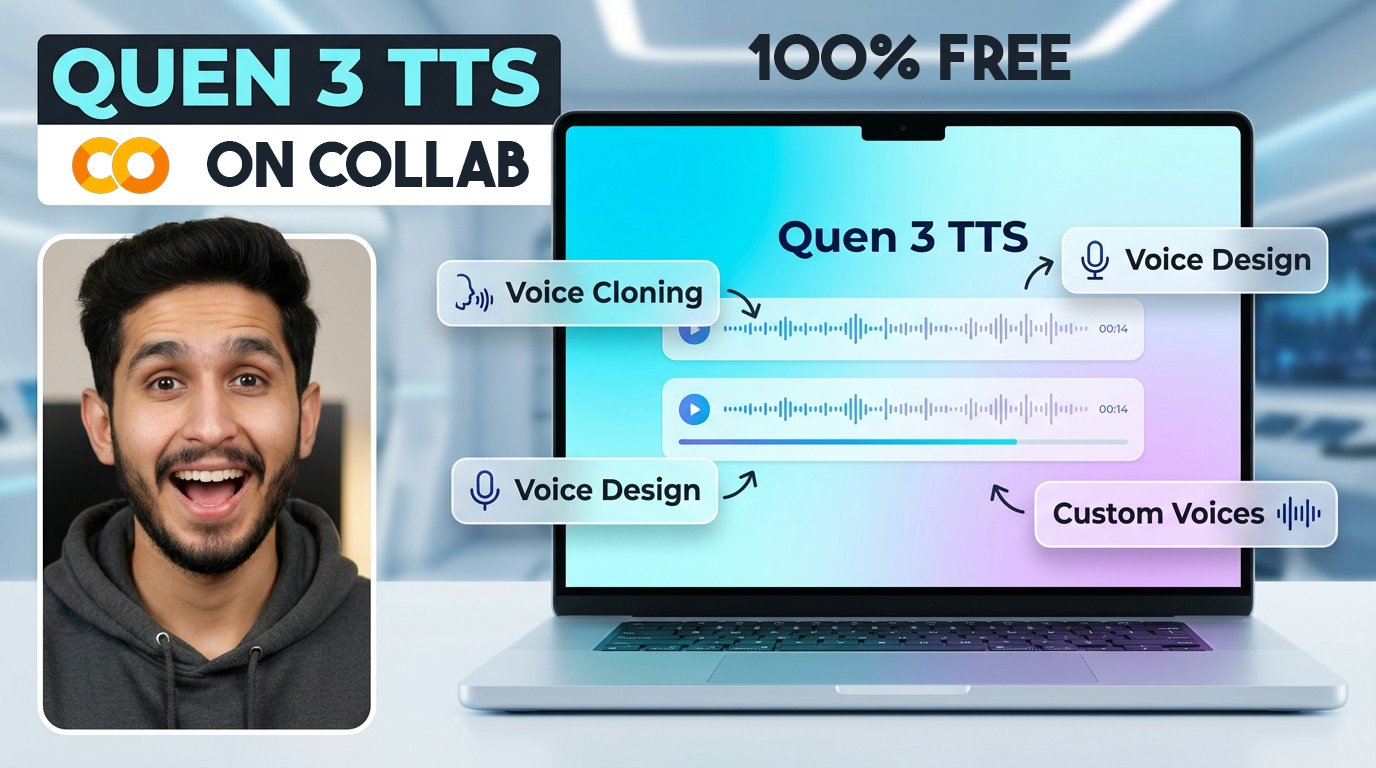
After releasing an earlier video on Quen 3 TTS, many viewers asked for two things: a proper installation guide and real-world testing. This article covers both. Based entirely on hands-on experimentation, it explains how to run the full Quen 3 TTS model for free using Google Colab, without requiring a local GPU, and evaluates its performance across multiple voice generation scenarios.
What Is Quen 3 TTS?
Quen 3 TTS is a large-scale text-to-speech model designed to generate expressive, high-quality speech. According to the testing shown, the model includes:
- 1.7 billion parameters
- Support for voice cloning
- Voice design using descriptive prompts
- Custom prebuilt voices with optional style control
The setup demonstrated runs entirely inside Google Colab using a one-click workflow.
Running Quen 3 TTS in Google Colab
One of the main challenges addressed was Google Colab’s hardware limitation:
- T4 GPU
- 16 GB RAM
Because all three Quen 3 TTS features rely on separate large models, loading them simultaneously is not possible within Colab’s limits.
Custom Model Offloading Solution
To solve this, a custom offloading system was implemented:
- Only one model loads at a time
- Switching features automatically unloads the previous model
- Uses FP16 optimizations and SDPA tweaks for stability
This allows full functionality while staying within Colab’s memory constraints.
Installation Process (One-Click Setup)
The installation process is intentionally simple:
- Open the provided Google Colab notebook
- Click Run All
- Accept the standard Google warning
- Wait approximately 2–3 minutes for installation
During this step:
- Flash Attention and dependencies install
- No model weights are downloaded yet
- Models only download when first used
Once complete, a public Gradio interface link becomes available.
Interface Overview
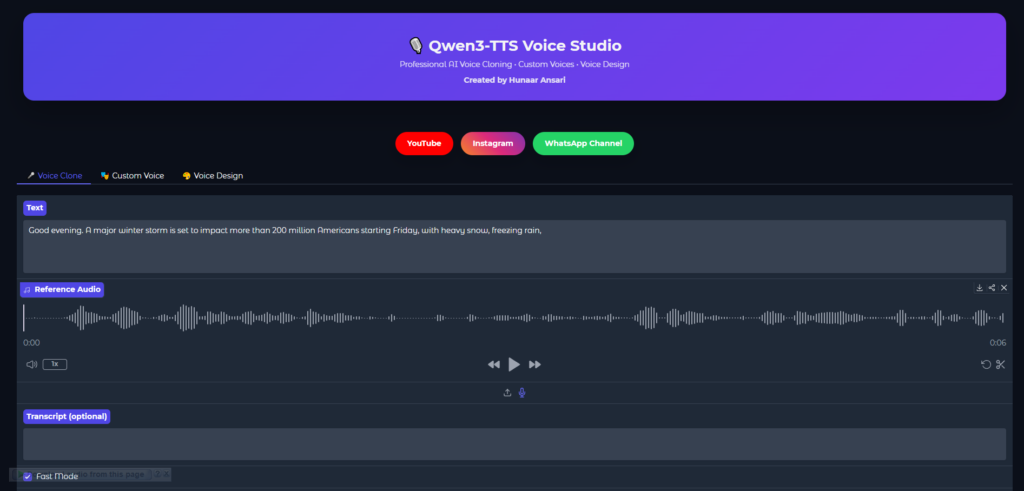
The Gradio interface includes three tabs:
- Voice Cloning
- Voice Design
- Custom Voice
Each feature loads independently, ensuring stable performance within Colab.
Voice Cloning: Real-World Results
Voice cloning was tested using multiple voices and languages.
Key Observations
- Providing an accurate transcript of the source audio significantly improves similarity
- A fast mode exists, but similarity is lower without transcripts
- First-time model loading takes about 1–2 minutes
- Subsequent generations are much faster due to caching
Cross-Lingual Cloning
- Cloning from Chinese audio into English works
- Voice similarity remains recognizable
- Accent consistency is slightly reduced, which is expected in cross-language cloning
Overall, voice cloning produced strong results, especially for clear, well-recorded samples with transcripts.
Voice Design: Prompt-Based Voice Creation
Voice design allows users to describe a voice using text prompts rather than audio samples.
Tested Voice Styles Included
- Musical storyteller narration
- Cinematic trailer voice
- Child-like narration
- Customer support tone
- Fantasy narrator
- Tech YouTuber delivery
- Calm therapist voice
- Sports commentator energy
Performance Notes
- Complex emotional and stylistic prompts are handled well
- Some outputs exhibit a slight dubbing or anime-style accent
- Regeneration produces varied results from the same prompt
- The model occasionally adds expressive elements beyond the script
This feature proved especially strong for creative narration and expressive storytelling.
Handling Complex Acting Prompts
The model was also tested with highly demanding prompts, including:
- Aggressive or dramatic characters
- Whispered ASMR-style voices
- Villain monologues
- Drunk or slurred speech with pauses and irregular delivery
In several cases, the model added non-verbal expressions such as pauses, laughter, or sighs without explicit instruction, showing advanced expressive behavior.
Custom Voice Mode
Custom voice mode offers prebuilt voices with optional style instructions.
Features
- Multiple selectable voices
- Optional emotion and pacing controls
- Supports both English and Chinese prompts
This mode is simpler than voice cloning or voice design and is intended for quick, consistent outputs.
Performance and Usage Limits
- Runs for approximately 4–6 hours per Google account
- Colab usage resets daily
- Multiple accounts can extend usage time
- No local GPU required
- Fully free within Colab’s limits
Key Takeaways
- Quen 3 TTS can be run entirely in Google Colab with one click
- No local GPU is required
- Voice cloning quality improves significantly with transcripts
- Voice design handles complex emotional prompts effectively
- Custom offloading makes large models usable within Colab limits
- Once models are cached, generation becomes fast and efficient
Frequently Asked Questions
Is Quen 3 TTS free to use?
Yes. The setup shown runs entirely on Google Colab’s free tier within its daily usage limits.
Do I need a GPU on my own computer?
No. All processing is done on Colab’s T4 GPU.
Does voice cloning require transcripts?
Transcripts are optional, but providing them greatly improves voice similarity.
Can I use multiple features at once?
No. Due to memory limits, only one feature loads at a time, but switching is automatic.
Are models re-downloaded every time?
No. Once downloaded, models are cached and reused in future sessions.
About the Author